Translation is a great first contribution if you want to contribute to p5.js. You don’t need to understand the whole codebase, instead just the language you are translating into in enough.
This page covers finding a translation task, editing the file, previewing locally, and opening a pull request.
Table of Contents
- Before you begin
- Workflow overview
- 1. Fork and clone
- 2. Create a branch
- 3. Edit the translation file
- 4. Preview locally
- 5. Commit, push, and open a pull request
- Translation coverage
Before you begin
- Read the Community Statement.
- Create a GitHub account if you do not have one.
- See the already existing translation issues on
processing/p5.js-website, and you can pick one to work on. - Comment on the issue with the language you want to work on (for example, Spanish or Hindi). That helps avoid duplicate work.
Issues may mark a translation as missing or outdated. Follow the file path listed in the issue.
Workflow overview
---
title: Workflow overview of language contribution
---
flowchart TD
    ChooseIssue[Choose a translation issue] --> Comment[Comment with your language]
    Comment --> ForkClone[Fork and clone p5.js-website]
    ForkClone --> Edit[Translate the file]
    Edit --> RemoveFlag[Remove needsTranslation line]
    RemoveFlag --> Preview[Run npm run dev]
    Preview --> OpenPR[Open a pull request]
1. Fork and clone
- Open
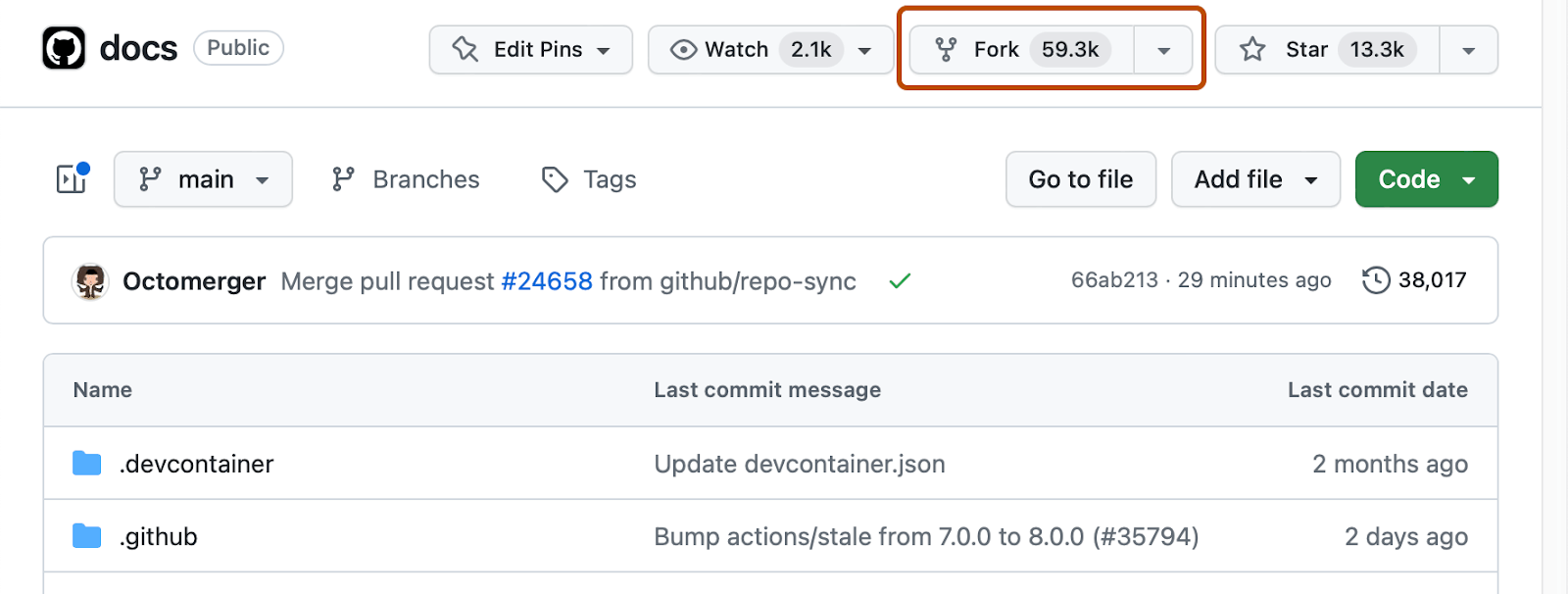
processing/p5.js-website. - Click Fork in the upper-right corner.
The second step to work on the p5.js-website translation code is to fork the p5.js-website repository. Forking has a specific meaning in open source, but for our purpose, it means creating a copy of the repository and storing it in your own GitHub account. To fork a repo, simply click on the “Fork” button near the top of the page, and GitHub will make a copy of the repo in your account.
- Clone your fork
Once the fork is created, navigate to your fork’s page and copy the git URL by clicking the green “Code” button.
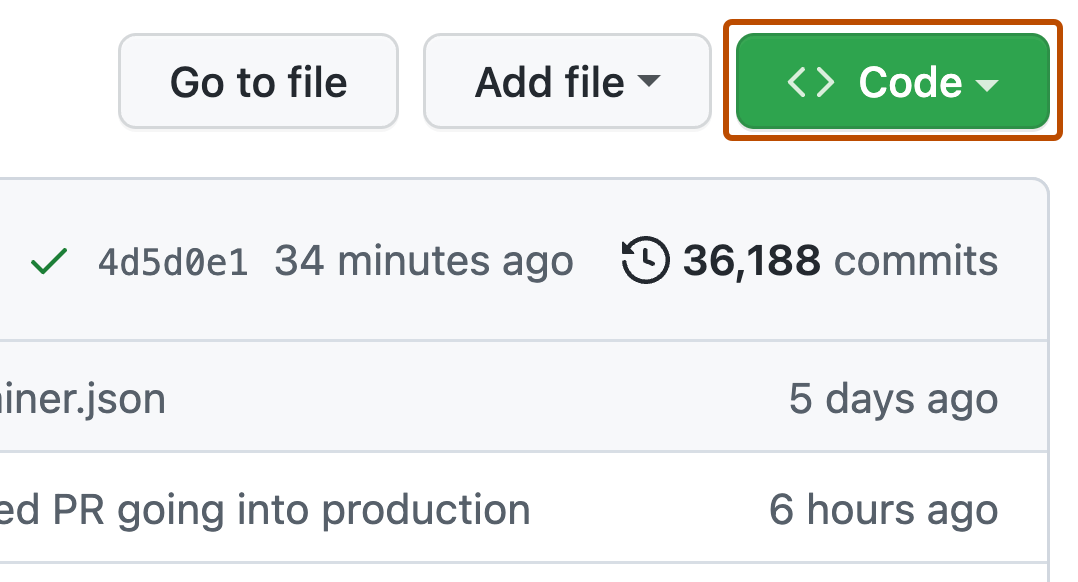
Next go to the command line in your local environment and clone this git repository. “Clone” simply means download a copy of the repo to your local machine. Run the following command in a folder where you want to store the p5.js-website source code folder.
git clone [git_url]Replace [git_url] with the URL you just copied above. This can take several minutes, depending on the speed of your internet connection, a good time to make some coffee! Once the process is finished, you can open up the downloaded folder named p5.js-website in your preferred text editor and start looking around.
- Install dependencies:
cd p5.js-website
npm install
This command helps you move to the right folder, and then install the required dependencies to run the project properly.
2. Create a branch
It is important for your new work to be in a new branch. It helps during translation, helps maintainers review your code, and supports the PR/issues workflow. The default branch is main; to make changes, create a new branch with a very descriptive name.
git checkout -b translation/translate-short-description-esUse a clear name and your language code (es, hi, ko, or zh-Hans) for the branch name.
3. Edit the translation file
Website content lives under src/content folder. You’ll see folders like examples, events, people, etc. English is in en/. Translations use the same path with another language folder (and language code):
For example, the Spanish equivalent of src/content/examples/en/.../description.mdx is src/content/examples/es/.../description.mdx.
Open the exact path from the issue. If a stub already exists, translate that file instead of creating a new one.
A stub looks roughly like this:
---
title: Color
description: Learn how color works in p5.js.
needsTranslation: true # Remove this entire line after translation is complete
---

Translate the page body here.
When you finish:
- Translate the human-readable text.
- Keep Markdown, links, code blocks, and p5.js function names (for example
circle(),fill()). - Delete the entire
needsTranslation: trueline. Do not set it tofalse. While that line is present, the site shows English instead of your draft.
4. Preview locally
From the repository root:
npm install
npm run dev
Open the URL shown in the terminal (usually http://localhost:4321), switch to your language in the site menu, and open your page.
Confirm that:
- your translation appears (not the English fallback);
- the page loads without errors;
- formatting, links, and code still look right.
Now if everything looks normal, we top the server. In the terminal, press Control + C (works if you are on Windows, Mac, and Linux) and it should stop your server.
5. Commit, push, and open a pull request
git status
git add path/to/your/translated-file.mdx
git commit -m "docs: update Spanish translation for the color example"
git push -u origin translation/translate-short-description-es
On GitHub, open a pull request into processing/p5.js-website.
In the PR description:
- say which language and page you translated;
- link the issue (
Addresses #1234); - note that you ran
npm run devand verified the translation.
First a translation steward will review your translations and leave review comments, if needed. Depending upon the availability of stewards, this might take a few weeks or even longer. In the meantime, if you want to help review others’ translation in your own language, and become a steward yourself, check https://p5js.org/contribute/steward_guidelines/.
After the translation steward approved your translation, one of the maintainers will review and merge your PR.
In between, if you need to make changes to the PR, then just push updates to the same branch, the PR updates automatically.
Translation coverage
You can see overall translation progress/coverage:
For more technical details about the translation architecture, including routes, UI strings, English fallback, and how localization works in the website code, see the localization documentation.
Questions are welcome on the issue or pull request. Ask rather than guess when wording or technical terms are unclear.